This article applies specifically to organizations using the HRIS Sync integration.
Overview
To authenticate Dayforce HCM (formerly Ceridian Dayforce HCM) using your credentials, you will need to provide the following information:
- Company ID
- Credentials
This guide will walk you through finding or creating those credentials within Dayforce.
Prerequisites
Before you configure the integration, make sure the role you’re using for it is set as your default role.
To set a default role:
- Go to System Admin User
- Find and click the user you want to update (usually your own)
- Next to the role you’re using for this integration, select the Is Default checkbox
Instructions
Step 1: Configure Feature Access
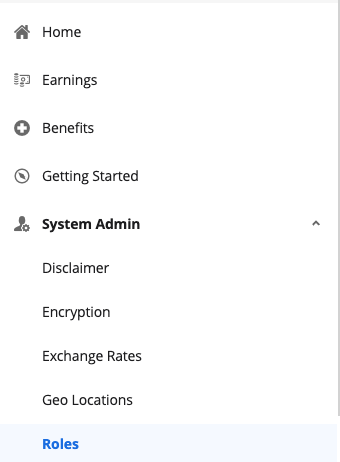
- From the hamburger button in the top left of your screen, click on System → Admin Roles
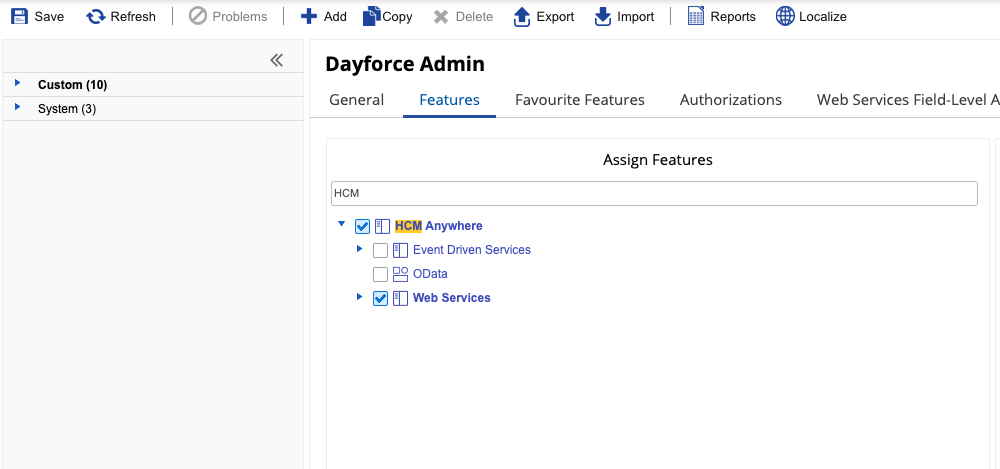
- Navigate to Features; ensure HCM Anywhere and Web Services are checked
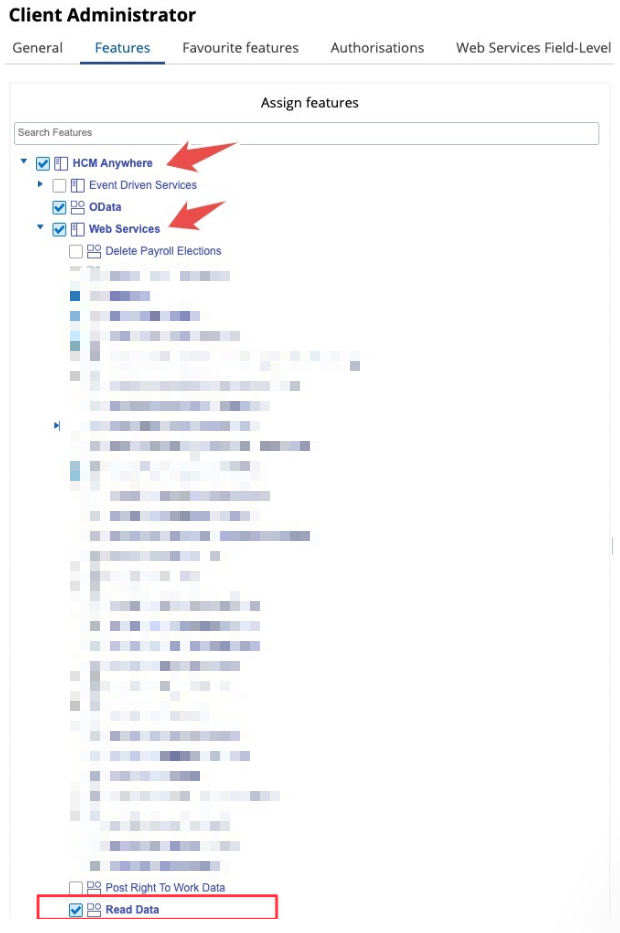
- Expand Web Services and make sure that Read Data is checked. If you need to PATCH/POST data, you will need the associated checkboxes marked as well
Step 2: Configure Authorizations
- Navigate to Authorizations
- Select Can Read for the following (depending on your use case):
- Employee Contact Information
- Employee Contact Information - Business
- Employee Contact Information - Personal
- Employee Financial Information
- Employee Key Information
- Employee Historic Pay Information
- Employee Pay Information
- Employee Personal Information
- Employee Personal Information XrefCode
- Employee Profile – Security Settings – Role
- Employee Properties *for custom fields*
- Employee Status Information
- Employee Work Assignment – Primary Records
- Employee Work Assignment – Secondary Records
- User Information
Step 3: Configure Web Services Field-level Access
- Navigate to Web Services Field-level Access
- Navigate to the RESTful Services - Human Resources - Employee:
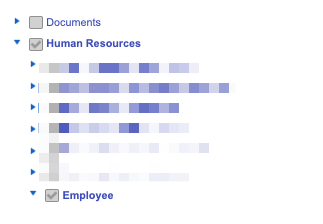
- Enable EffectiveStart, EffectiveEnd, and XRefCode
Then, depending on your use case:
- If you need names:
- Enable FirstName and LastName and CommonName
- If you need managers:
- Right-click Employee managers and Select All
- If you need employment status:
- Right-click Employment Statuses and Select All
- Right-click Employment Status Group and Select All
- If you need location information:
- Right-click Locations and Select All
- If you need employment information:
- Enable RESTful Services Human Resources EmployeeWorkAssignment (and all child nodes)
- If you need pay information:
- Enable RESTful Services Human Resources EmployeeCompensation (and all child nodes)
- If you need emails/contact information:
- Enable Contacts and Addresses (and all child nodes) under RESTful Services Human Resources Employee
- If you need Social Security Number:
- Enable RESTful Services Human Resources socialSecurityNumber
- If you need gender:
- Enable Gender
- If you need marital status:
- Enable MaritalStatus
- If you need birth date:
- Enable BirthDate
- If you need start date or hire date:
- Enable StartDate and HireDate and OriginalHireDate
- If you need Groups:
- Enable RESTful Services Configuration Location (and all child nodes) AND RESTful Services Human Resources OrgUnitInfos
- If you need Time Off:
- Enable RESTful Services Human Resources Workforce Management EmployeeTimeAwayFromWork (and relevant child nodes)
- If you need Custom Fields (employee properties):
- Enable RESTful Services Human Resources EmployeePropertyValue
Step 4: Configure Org-Level Access
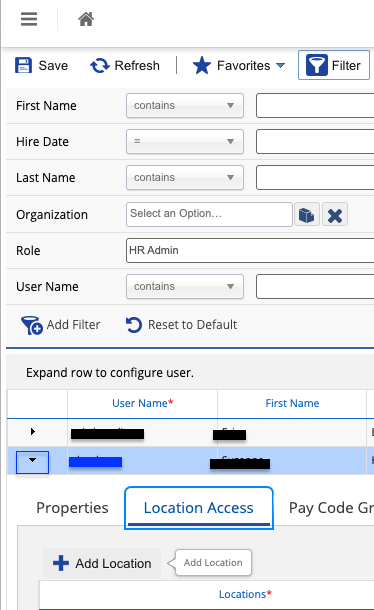
- Navigate to System Admin → User. Please note, the user authenticating will need Can See Self enabled
- Expand the User by clicking on the small down arrow as shown in the blue box below. Click on Location Access, + Add Location, and add the Company Level Location
Step 5 (optional): Configure Role Assignment for POST & PATCH
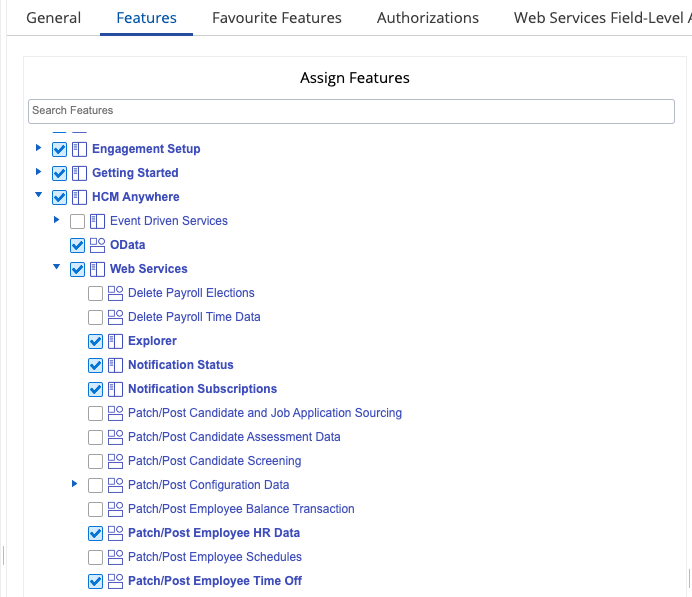
If you need support for writes functionality (ie POST /Time-Off), please configure the following as well:
- From the hamburger button in the top left of your screen, click on System Admin → Roles
- Navigate to Features. Expand HCM Anywhere, then expand Web Services
- Check the box for Patch/Post Employee Time Off
Step 6: Authenticate with your credentials in the linking flow
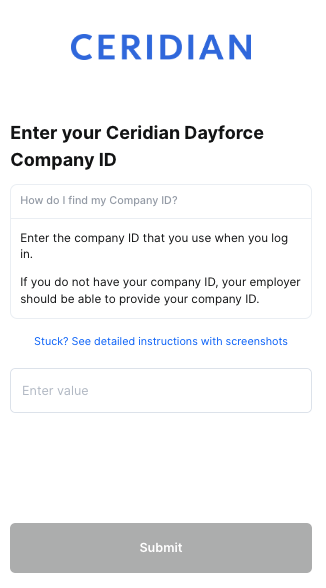
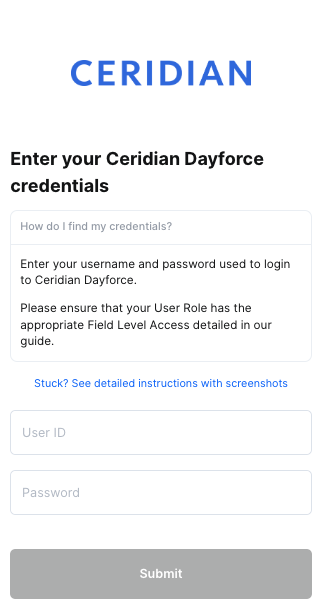
Gather your Company ID, User Name, and Password. Enter them into the linking flow and click Submit
Fields ContactMonkey can sync from Dayforce
When you connect Dayforce with HRIS Sync, ContactMonkey can pull the fields below into your Directory. A field only fills in if it has a value in Dayforce and the account you used to connect has permission to read it.
Employee fields
| Field | What it contains |
|---|---|
| First name | The employee's first name. |
| Last name | The employee's last name. |
| Preferred first name | The first name the employee prefers to go by. |
| Full name | The employee's full name. Uses the preferred first name when one is available. |
| Work email | The employee's work email address. |
| Personal email | The employee's personal email address. |
| Mobile phone number | The employee's mobile phone number. |
| Employee number | The employee number shown in your HRIS. |
| Employment status | Whether the employee is active, pending or inactive. |
| Start date | The date the employee started. For rehired employees, this is the most recent start date. |
| Termination date | The employee's termination date. |
| Manager | The employee's manager. |
| Groups | The departments, teams and other groups the employee belongs to. See Group fields below. |
| Work location | The employee's work address. See Location fields below. |
| Home address | The employee's home address. See Location fields below. |
| Date of birth | The employee's date of birth. |
| Gender | The employee's gender. |
| Ethnicity | The employee's ethnicity. |
| Marital status | The employee's filing status as related to marital status. |
| Social security number | The employee's social security number. |
Group fields
Groups are how Dayforce organizes employees, such as departments and teams.
| Field | What it contains |
|---|---|
| Group name | The name of the department, team or other group. |
| Group type | The kind of group as labelled in your HRIS, such as department, team, cost center or business unit. |
Location fields
Location fields describe an employee's addresses.
| Field | What it contains |
|---|---|
| Location name | The name of the location. |
| Location type | Whether the address is a work or home address. |
| Street address line 1 | Line 1 of the street address. |
| Street address line 2 | Line 2 of the street address. |
| City | The city. |
| State or region | The state, province or region. |
| Zip or postal code | The zip or postal code. |
| Country | The country. |
Fields not available from Dayforce
Dayforce doesn't share these fields through HRIS Sync: Profile photo, Username, Record created date, Parent group, Location phone number.