| This article applies specifically to organizations using the HRIS Sync integration. |
Overview
To authenticate Paychex, you will need to provide the following information:
- API key
- Client Secret
This guide will walk you through finding or creating those credentials within Paychex.
Prerequisites
Please ensure you have Admin permissions in your company's Paychex instance or someone has shared their access with you.
Instructions
Step 1: Find your API key and Client Secret
- Log in to your Paychex account and go into Company Settings.
- Select Integrated apps.
- Click Create App.
- Enter an Application Name and Description.
- Select Read only for the Company and worker APIs
- If you also need to sync payroll information, select Read only for the Payroll and check APIs
- If you need access to Payroll data and do not see it as a toggle, contact your account manager for help.
- Accept the Legal Notice and Paychex Inc, API License Agreement, and Save.
- You'll then see the API key and Client Secret, which you'll paste into the linking flow
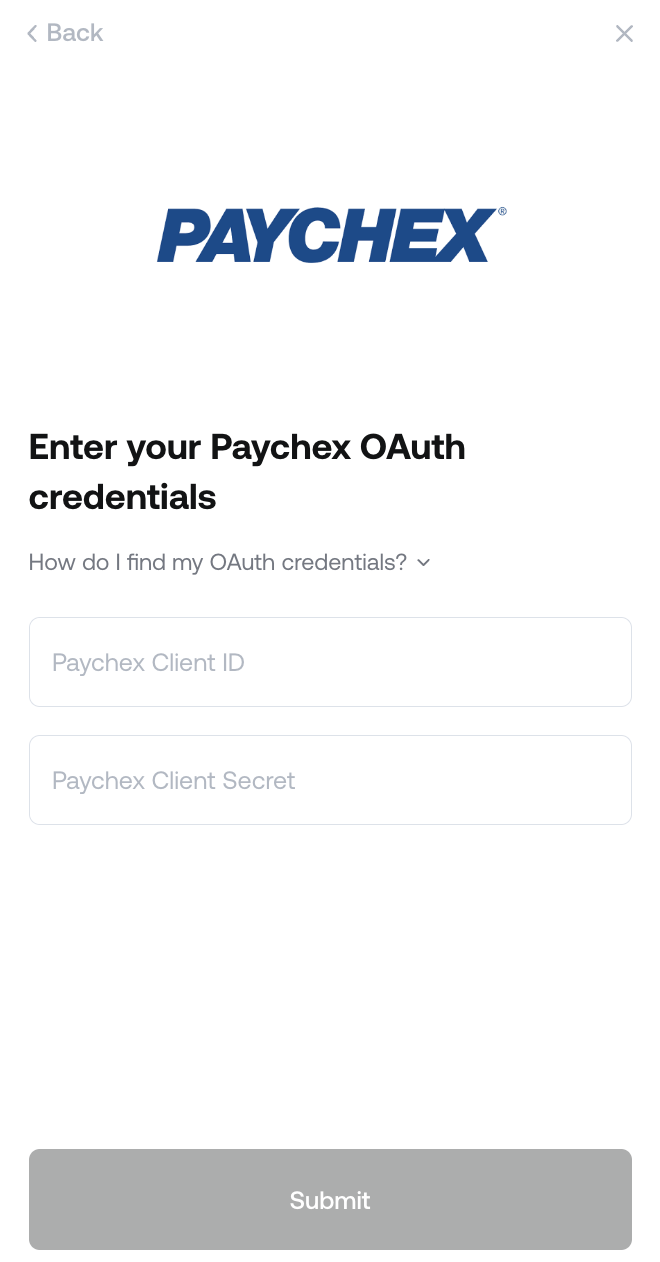
Step 2: Paste the credentials into the linking flow
Notes
- Linking multiple companies - If you want to link multiple companies in Paychex you have to be either a Super admin or a Security admin in the parent account, then follow the steps below:
- Make sure you register the app as described in the above guide for the Paychex parent account
- After creating the app, open it via Company Settings Integrated Apps {Your App Name}Scroll down to the Company Access section and click on +Add or remove Company
- Select all companies you wish to link to this set of credentials, these will now be shown in the Company Access section for review
- Save your changes
- Switch to each child account using the drop down arrow next to company name in the upper left cornerIn each child account open the app via Company Settings Integrated Apps {Your App Name}, then toggle on Access and Save the settings settings