This article applies specifically to organizations using the HRIS Sync integration.
Overview
SFTP (secure file transfer protocol) is a secure and private service for sending files over the internet. You can also securely upload reports on a one-time basis via a manual CSV upload. We resync the entire file and delete rows that are not present in each transfer.
In this guide, you will be given instructions on how to create a custom report in ADP with fields that you want to include for your use case.
This guide is tailored to ADP Workforce Now. If you have another product, like RUN, DECIDUM, or Vantage the following steps may still apply but the may look a little different.
Step 1: Create a custom report in ADP
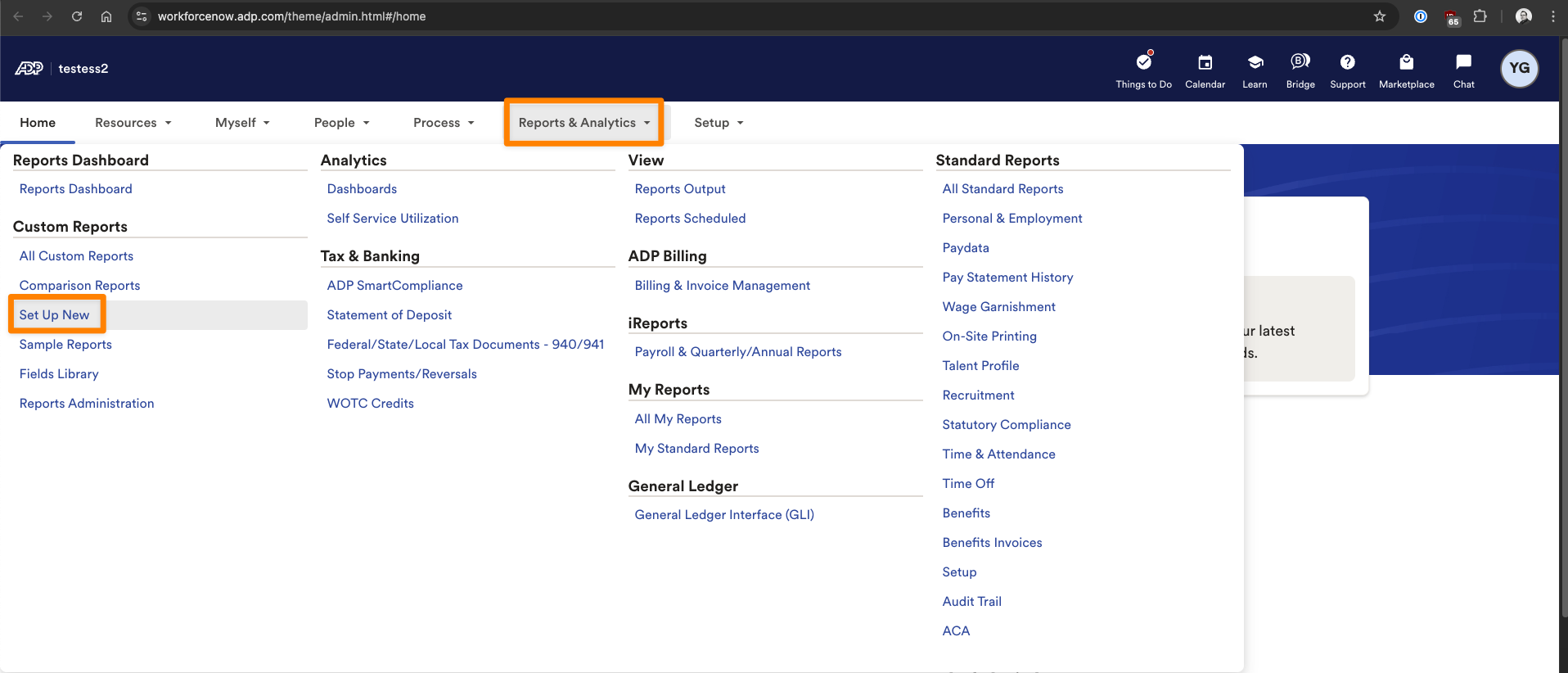
- Log into ADP and click Reports & Analytics
-
Click Set Up New under the Custom Reports
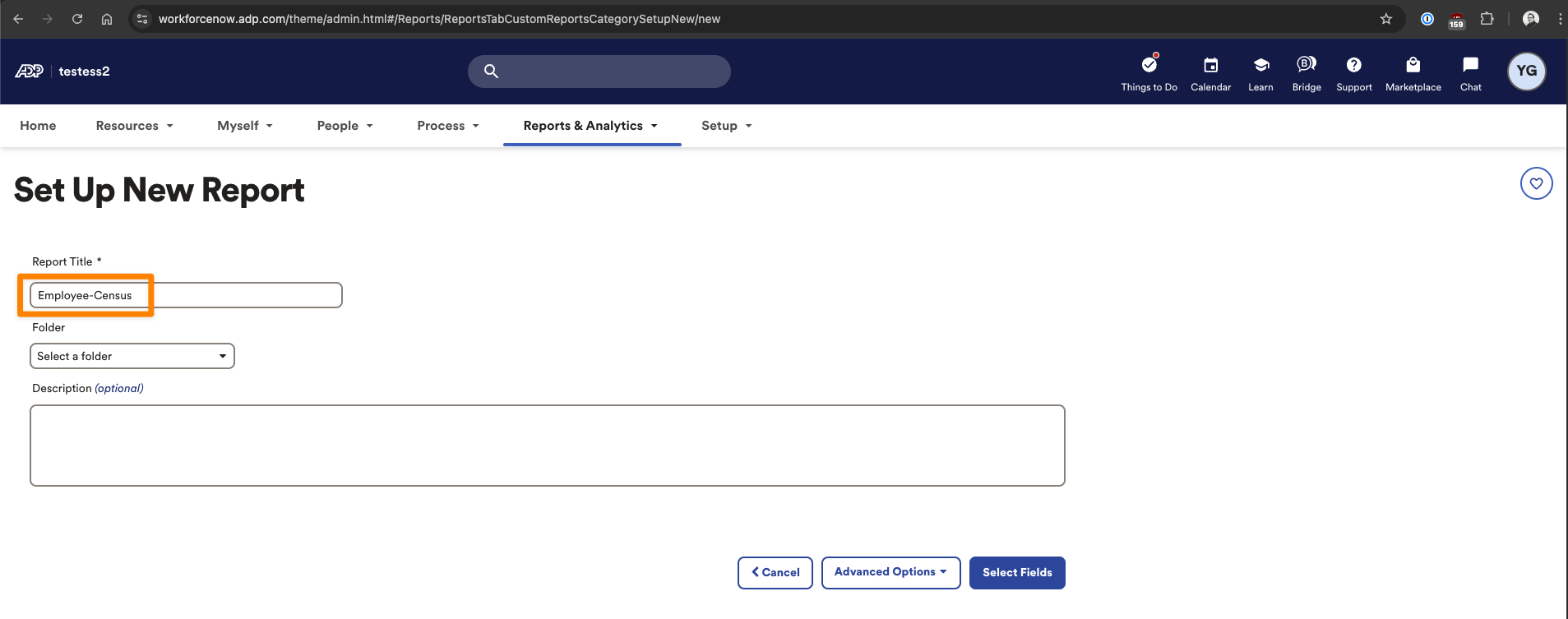
- In Set Up New Report page, set the report title to Employee-Census.csv
-
Note: Please make sure the report is name Employee-Census.csv exactly. No additional text, such as date.
-
- Then click Select Fields to continue
Step 1.1: Add fields to your custom report
Please work with your vendor (who you are sending this report to) on what fields are required for the report. You can find all the fields required for your use case in our SFTP Report Template. Please note that the fields must *exactly* match how they appear in that file.
Note: We highly recommend that you do not ask ADP to create this report for you as we've observed this incurs additional fees.
To add a field:
- Search for a field name under ADD FIELDS
- Click the + button to add it to the report on the right
CHECKPOINT
- Associate ID is required to sync Employees and must be the first column of your report
- Effective Date (or other acceptable ADP Fields that represent an Employment Effective Date) is required to sync Employments
- Reports To Associate ID, Manager ID, or Manager Employee ID is required to sync Manager data
-
First Name data is required
3. When you are done, click Save + Run
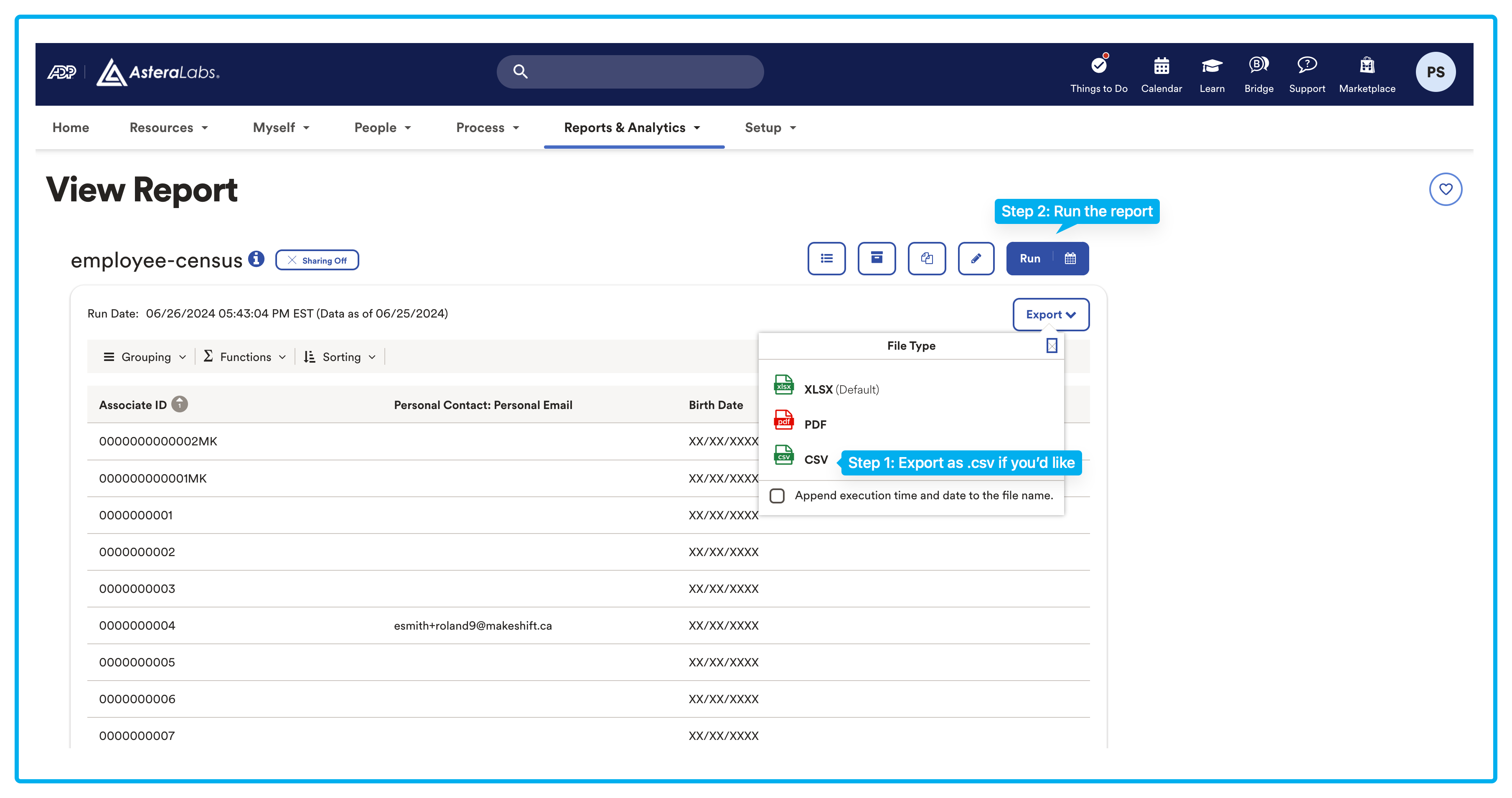
4. This will take you to a View Report screen where you can choose to export as csv
5. Click Run to finalize this report
CHECKPOINT
- Did you name the report Employee-Census.csv? This is required!
- Is the ASSOCIATE ID field the first column of your report? This is required to sync Employees!
- Did you add First Name field?
- Sometimes ADP will append a Report Totals to your custom report. If that is the case, please also delete this row.

Step 2: Share your custom report
There are two ways to send your report that you created above:
- You can use a one-time manual csv upload, see Option 1.
- You can also schedule a recurring transfer via ADP's Automatic Export Service (AES). Recurring transfers via AES will incur a monthly fee paid to ADP, see Option 2.
Option 1: One-time manual CSV upload
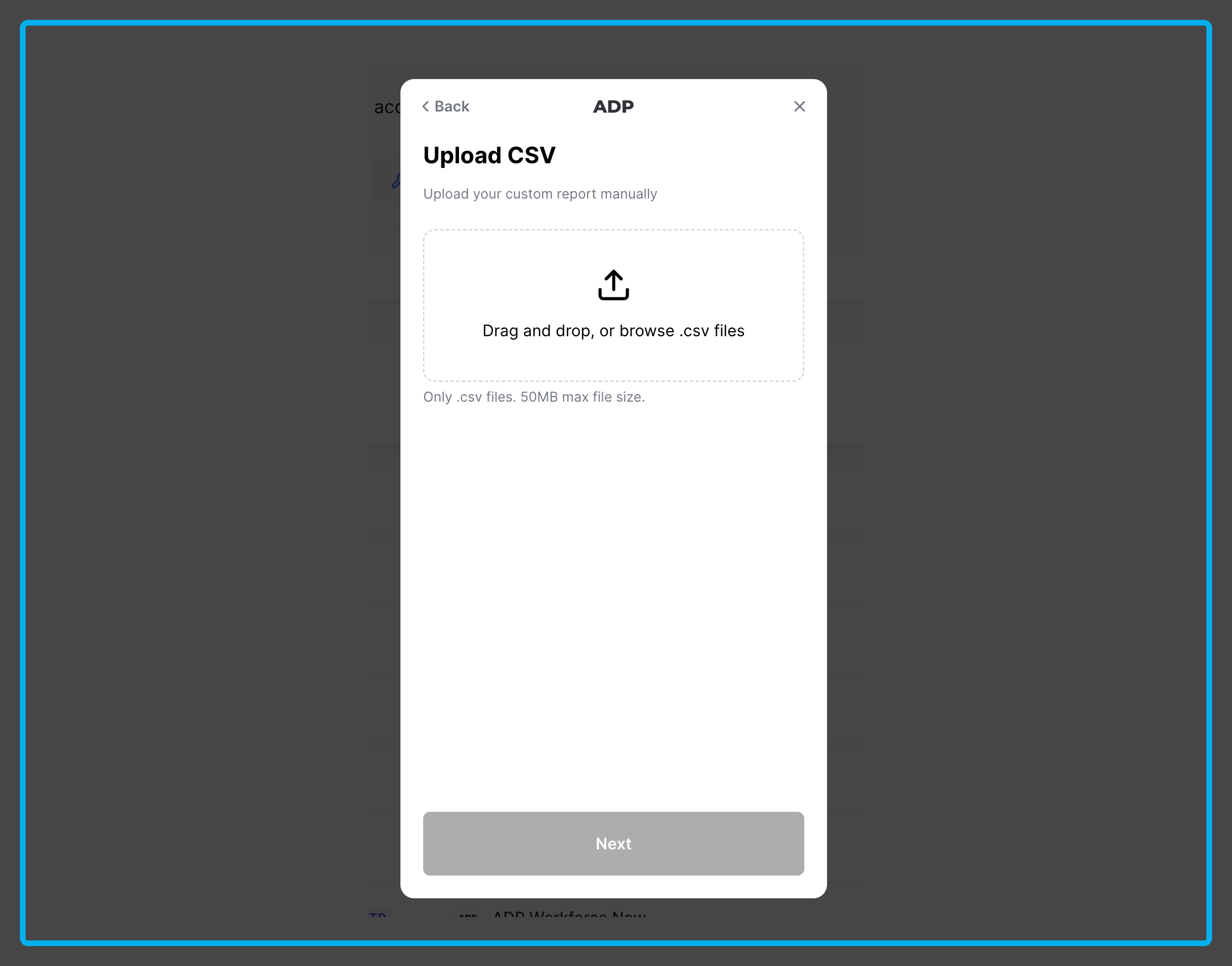
If you want to update your employee data with a one-time CSV upload simply download the report that you created in Step 2 as a CSV. Then upload it into your Linking modal.
Option 2: Recurring report transfers using Automatic Export Service
To automatically send your report on a recurring basis you will need to contact your ADP representative. They will charge a recurring fee to set up report automation that can be used across one or multiple reports. For more information on pricing, please refer to your ADP representative. Charges may vary but anecdotally we have heard prices range from $30-$50/month.
To set up the automation, you'll need to complete a Statement of Work with ADP to initiate the recurring file transfers (see the example below). Once finalized, ADP will apply the automation to the custom report you previously created. The process typically takes 3-4 weeks to complete.
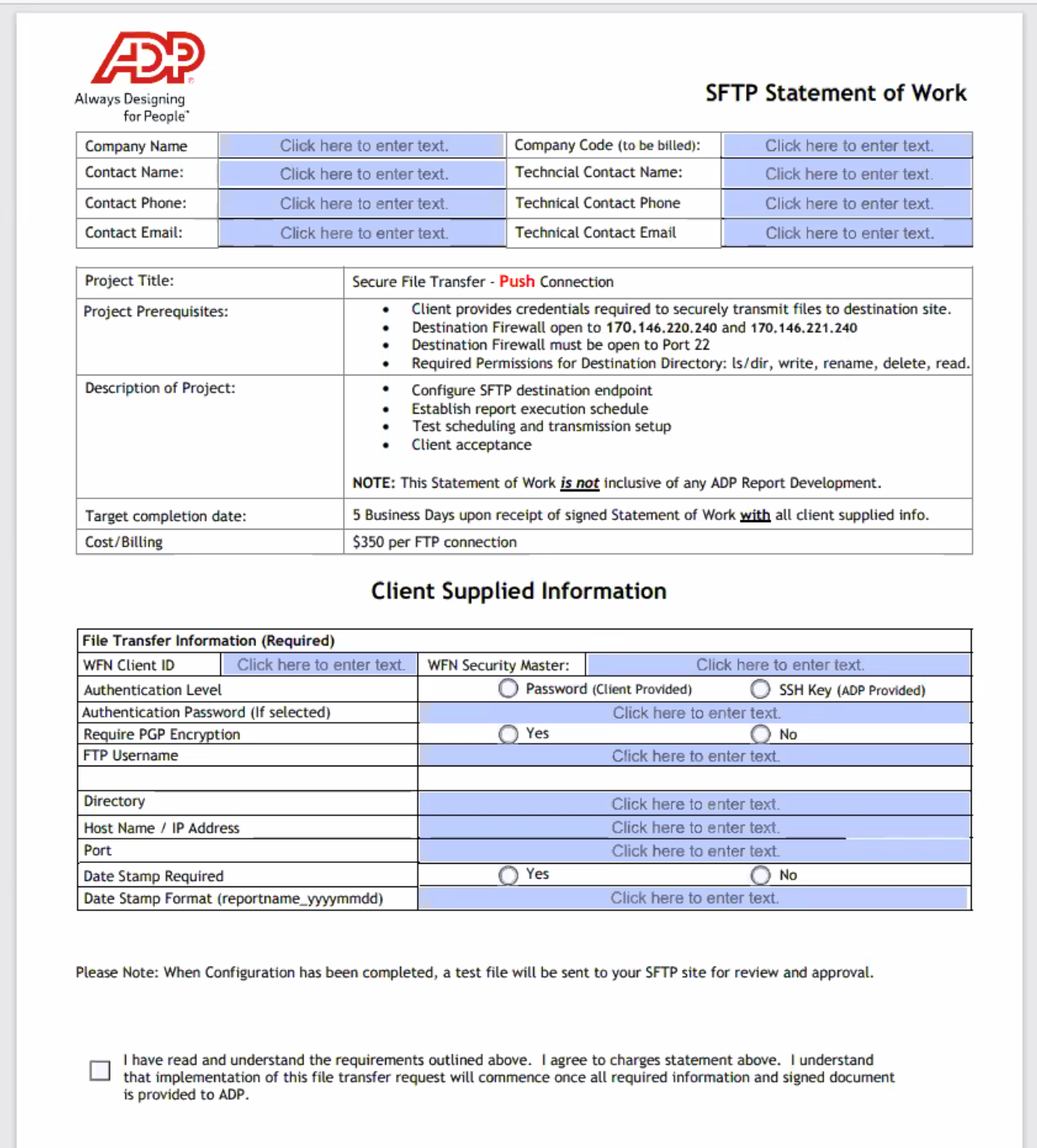
How to fill out the SOW:
- Please fill out the fields in Client Supplied Information:
- WFN Client ID: the characters to the right of the @ symbol in your ADP login name
- WFN Security Master: the person you chose as the Security Master in your ADP instance, this is likely your ADP Admin
- Authentication Level: SSH Key (ADP Provided)
- Date Stamp Required: No
- Require PGP Encryption: Either option is acceptable depending on your preferences
- You will find all other required information for the Statement of Work in your linking modal:
- FTP Username
- Directory
- Host Name
- Port
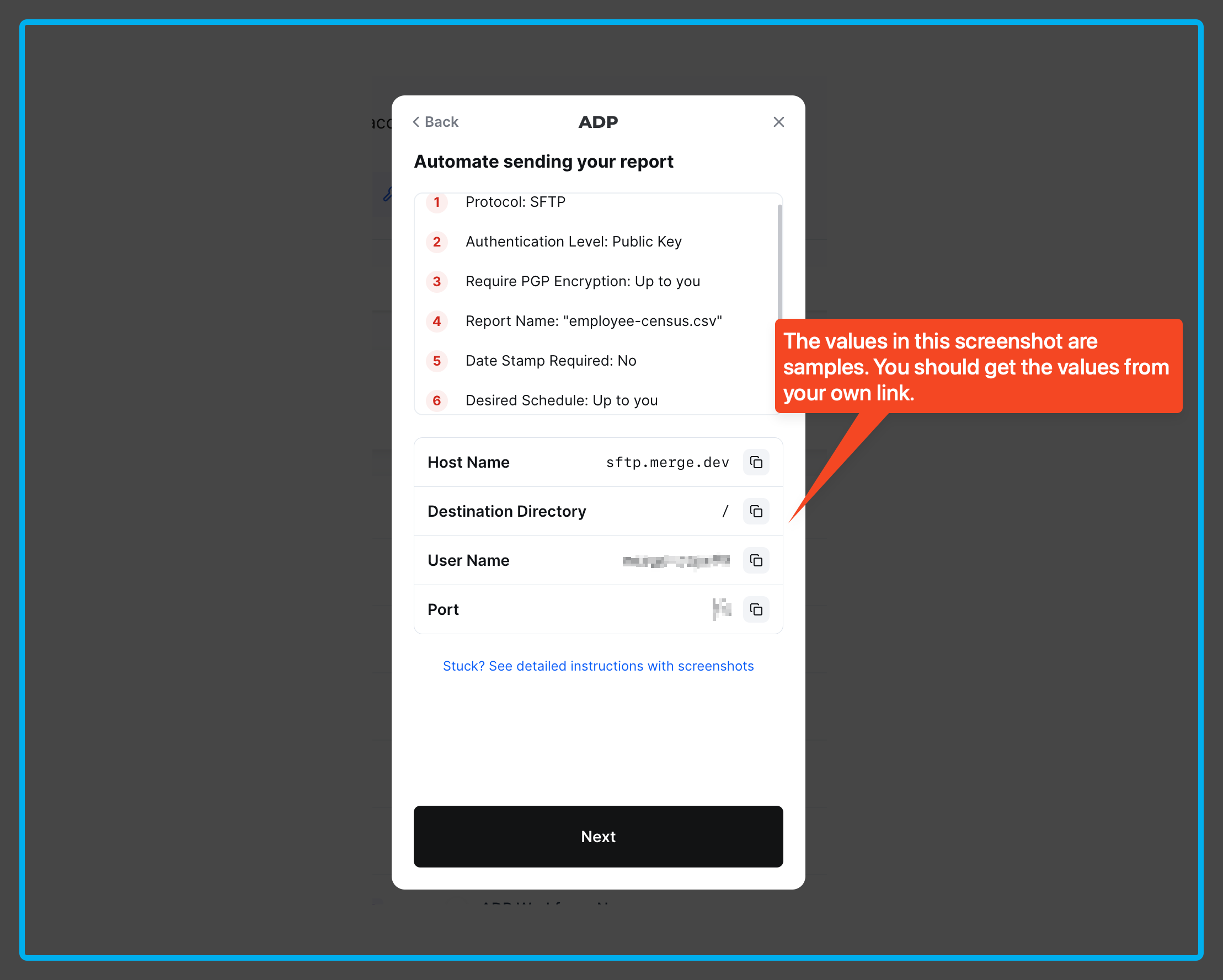
Once the SOW is completed, ADP will typically respond in 3-4 weeks with confirmation on when the report is to be scheduled and the required SSH Key to authenticate the connection.
Scheduling the report:
ADP may schedule the reports themselves based on your preferences, but if you would prefer to schedule the report:
-
Head over to Report & Analytics -> All Custom Reports.
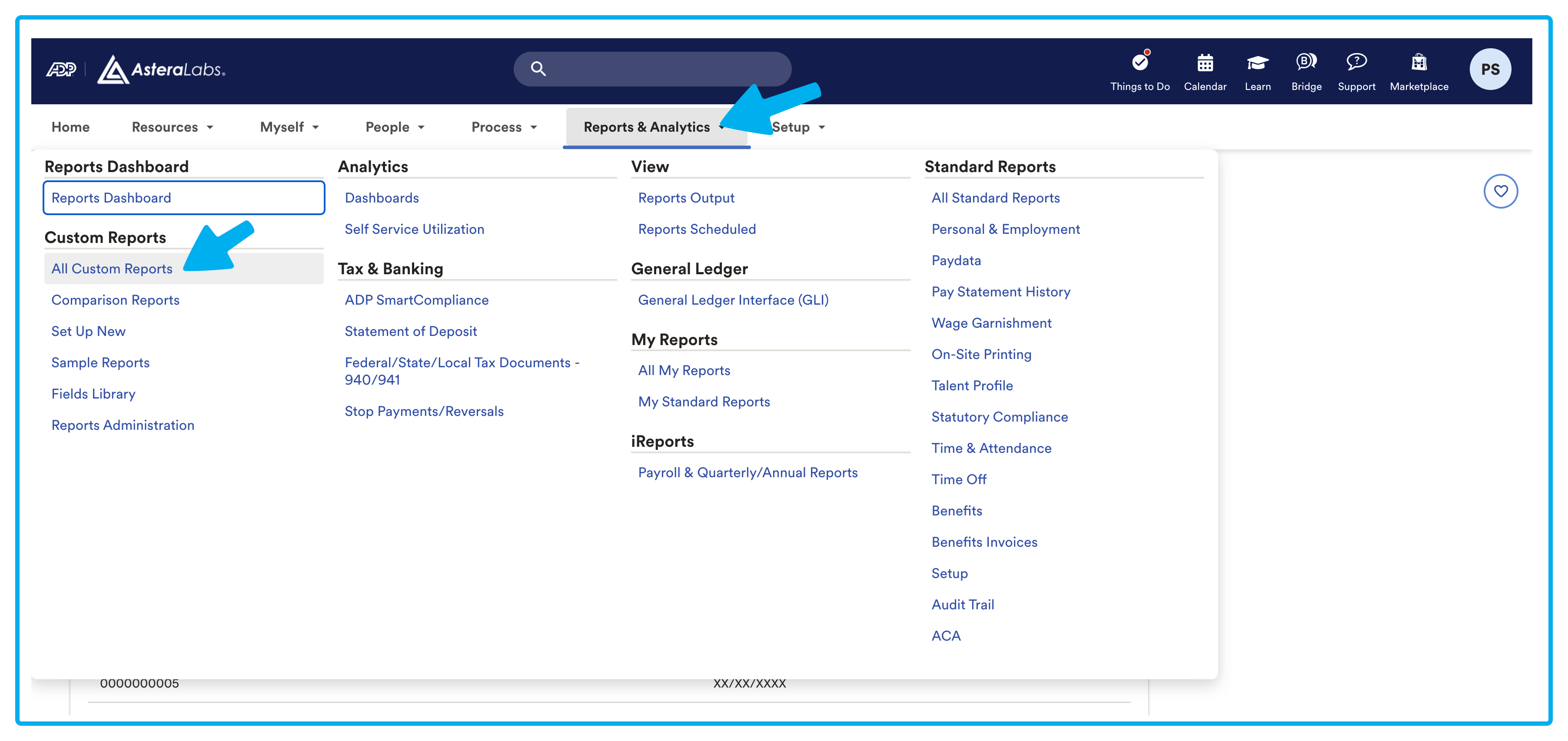
-
From the Reports main page, find the custom report that you configured and open up the menu. Then select Schedule To Run.
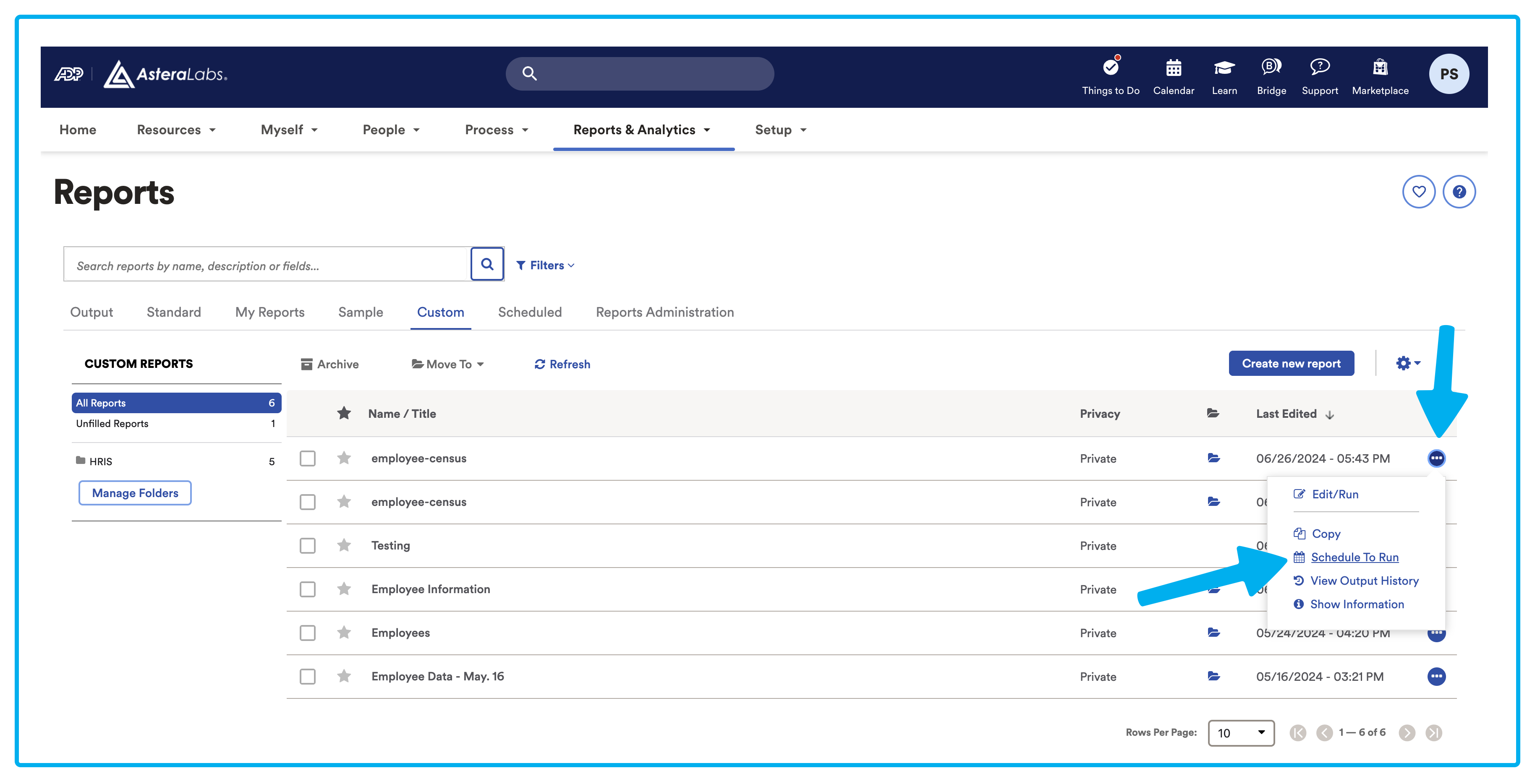
-
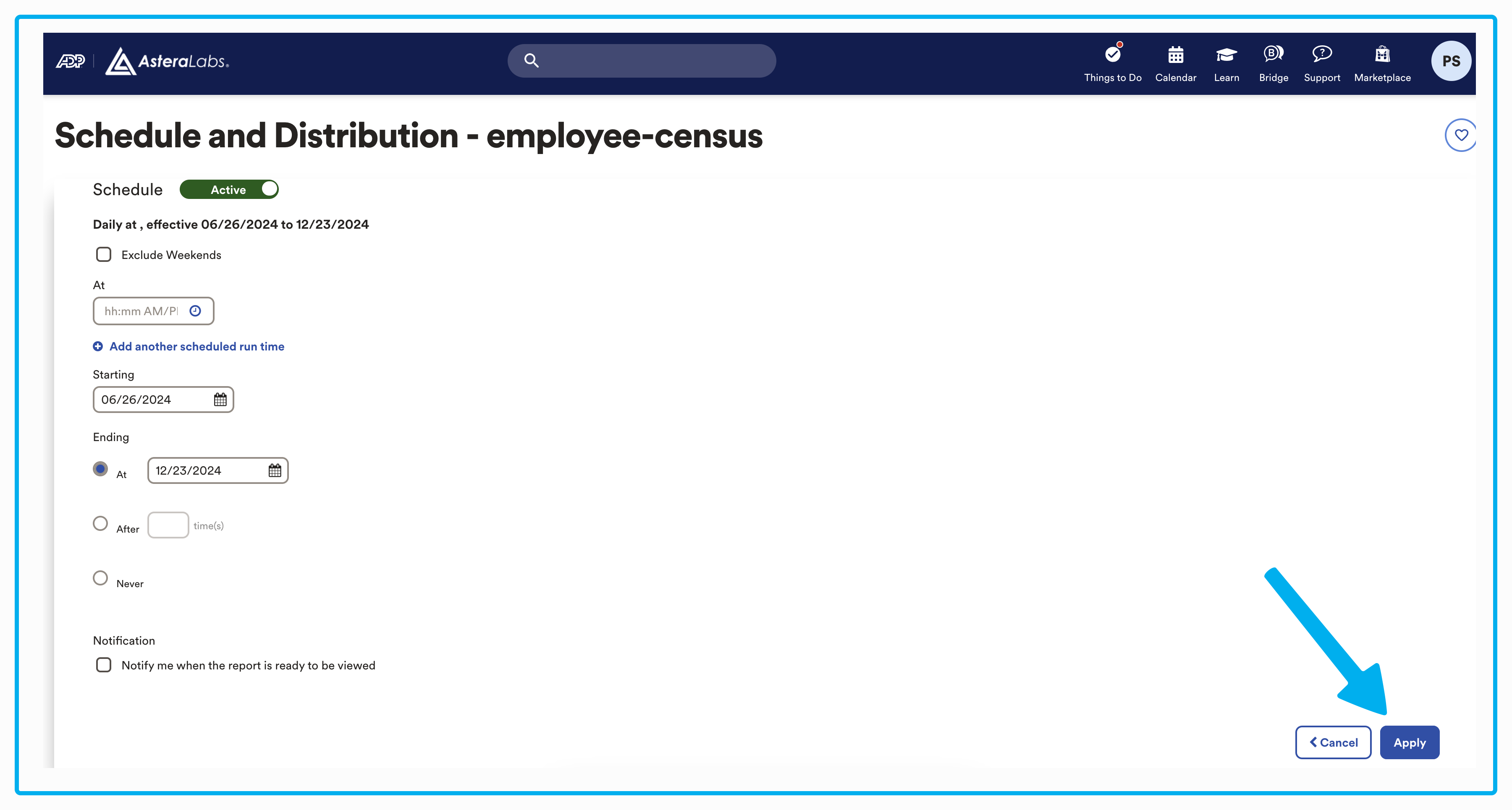
You'll then be in the Schedule and Distribution page. From here you are able to set up a recurring schedule for when your report will be sent. When you're ready, click Apply.
Authorizing the Connection via SSH Key:
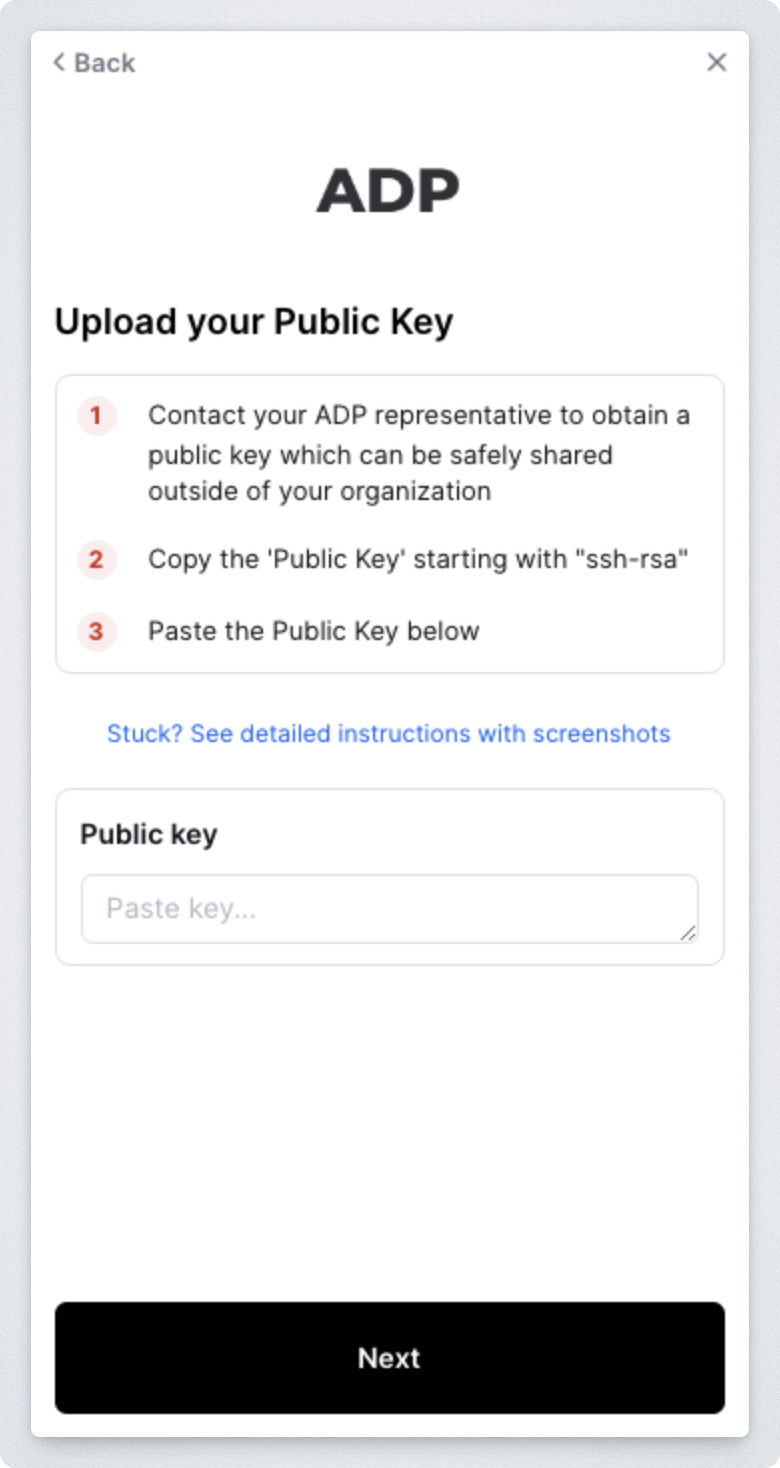
*Required* ADP will then provide you an SSH Key which you will need to input into the linking flow:
Step 4: Connection complete
You're done! Once the connection has been established, we will verify that the report has been properly formatted. From there, your data will be synced on the schedule that you configured through ADP!
Fields ContactMonkey can sync from ADP Workforce Now
When you connect ADP Workforce Now with HRIS Sync, ContactMonkey can pull the fields below into your Directory. A field only fills in if it has a value in ADP Workforce Now and the account you used to connect has permission to read it.
Employee Fields
| Field | What it contains |
|---|---|
| First name | The employee's first name. |
| Last name | The employee's last name. |
| Preferred first name | The first name the employee prefers to go by. |
| Full name | The employee's full name. Uses the preferred first name when one is available. |
| Work email | The employee's work email address. |
| Personal email | The employee's personal email address. |
| Mobile phone number | The employee's mobile phone number. |
| Profile photo | A link to the employee's profile photo. |
| Employee number | The employee number shown in your HRIS. |
| Employment status | Whether the employee is active, pending or inactive. |
| Start date | The date the employee started. For rehired employees, this is the most recent start date. |
| Termination date | The employee's termination date. |
| Record created date | When the employee's record was created in your HRIS. |
| Manager | The employee's manager. |
| Groups | The departments, teams and other groups the employee belongs to. See Group fields below. |
| Work location | The employee's work address. See Location fields below. |
| Home address | The employee's home address. See Location fields below. |
| Date of birth | The employee's date of birth. |
| Gender | The employee's gender. |
| Ethnicity | The employee's ethnicity. |
| Marital status | The employee's filing status as related to marital status. |
| Social security number | The employee's social security number. |
Group Fields
Groups are how ADP Workforce Now organizes employees, such as departments and teams.
| Field | What it contains |
|---|---|
| Group name | The name of the department, team or other group. |
| Group type | The kind of group as labelled in your HRIS, such as department, team, cost center or business unit. |
Location Fields
Location fields describe an employee's addresses.
| Field | What it contains |
|---|---|
| Location name | The name of the location. |
| Location type | Whether the address is a work or home address. |
| Street address line 1 | Line 1 of the street address. |
| Street address line 2 | Line 2 of the street address. |
| City | The city. |
| State or region | The state, province or region. |
| Zip or postal code | The zip or postal code. |
| Country | The country. |
| Location phone number | The phone number for the location. |
Fields not available from ADP Workforce Now
ADP Workforce Now doesn't share these fields through HRIS Sync: Username, Parent group.
Troubleshooting
If you are having difficulties sending or receiving the data please first check the following common requirements.
- Your report name must be exactly "Employee-Census.csv or "Employee_Census.csv"
- Your report must have the column "ASSOCIATE ID"
- Your report must be in .csv format