| This article applies specifically to organizations using the HRIS Sync integration. |
Overview
This article covers the steps needed to generate credentials in your SAP SuccessFactors instance. These credentials can be scoped to only specific fields and employees by following the steps below.
Prerequisites
Please ensure you fulfill all the requirements to set up the integration:
- You have Administrator permissions in your company's SAP SuccessFactors instance
Instructions
Step 1: Create a new user that will be used to link
- Search for and select the Import Employee Data task
- Update the action to Download Template
- Select an entity of Basic Import and click Generate Template
Open the downloaded file and add a row with the below information
Field Sample value Notes Status active User ID integration_sample This should be anything that will help you remember the user/integration Username integration_sample This should be anything that will help you remember the user/integration First Name Sample This should be anything that will help you remember the user/integration Last Name Integration This should be anything that will help you remember the user/integration Email integration_sample@example.com Doesn't need to be valid Manager NO_MANAGER HR NO_HR Default Locale en_US - After configuring and saving the file, go back to SAP and update the action to Import Data
- Choose and entity of Basic Import, select your file, then click Import
- Note, you can validate your file first by selecting Validate Import File Data
- Note, you can validate your file first by selecting Validate Import File Data
- Confirm the success dialog appears
- After a few seconds to a minute, search for the user you've created. If the user appears, you've successfully created the user.
Step 2: Create a new Permission Group for the user
- Search Manage Permission Groups in your search bar to navigate to the Permission Groups page.

- Click Create New to begin creating a new Permission Group for linking.
- Choose a name you'll remember that will help track that this Permission Group is for this specific connection.
- The User Type needs to be Employee, and the Choose Group Members should include the User you created in Step 1.
- You do not need to input anything in regards to the Exclude Section, or the Granted Permission Roles at this time.
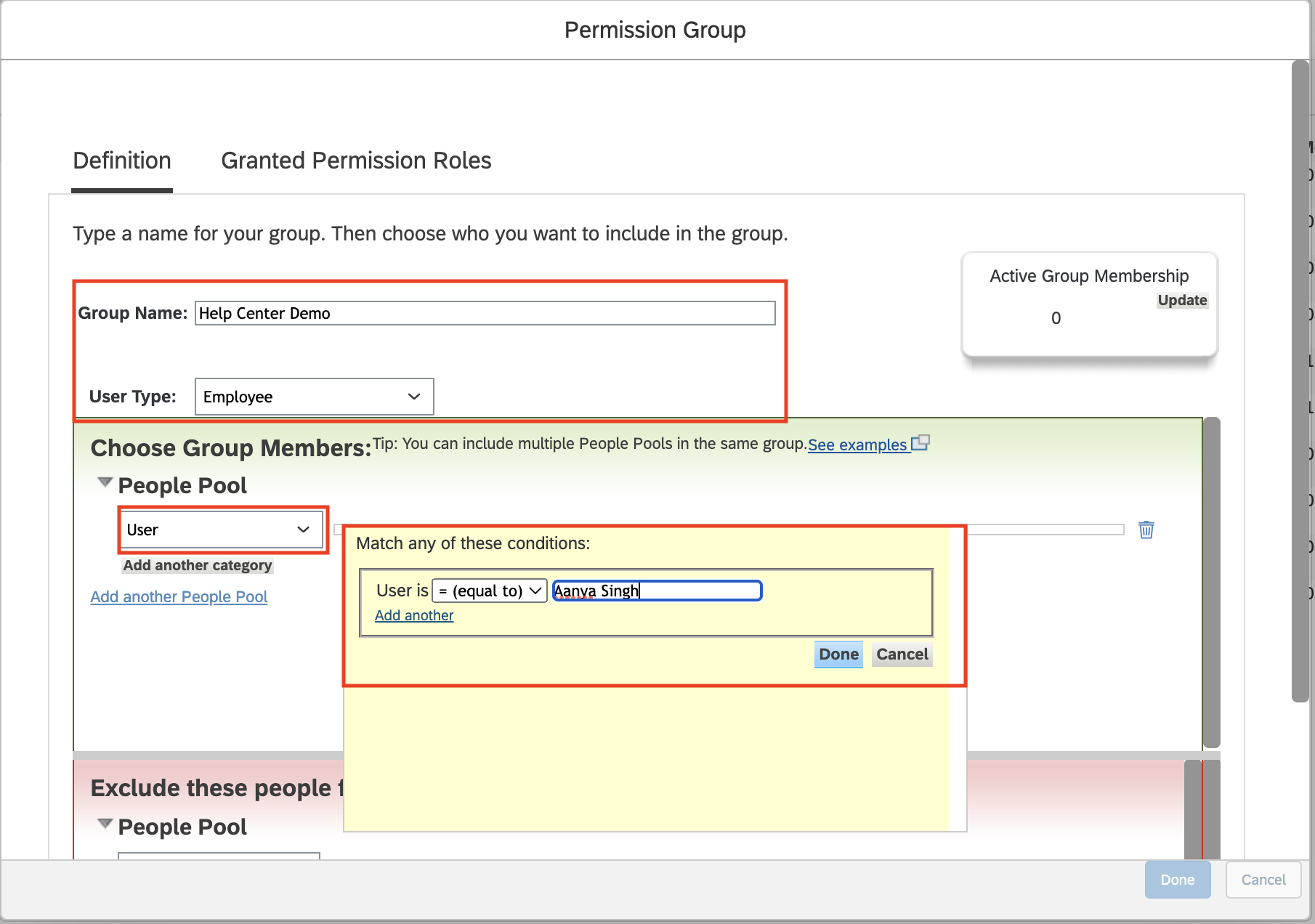
- Click Done to create and save this Permission Group.
Step 3: (Optional) create a Permissions Group for the "target" employees
If you want to only provide access to certain employees (employees within a given company, non-contingent workers, etc) and don't already have a Permissions Group for the target audience, follow the steps in this section.
- Click Create New to begin creating a new Permission Group for the target audience
Give the group a name like "
target audience" - Apply the filters:
- The example below provides access to employees in the "Atlanta"Note, you can test the filters by clicking
- Update, then selecting the Active Group Membership number
- Once done specifying the filters, click Done
Step 4: Create Permission Role with proper permissions
- Search up Manage Permission Roles in your search bar to navigate to the Permission Role page.

- Begin creating a new Permissions Role by selecting Create
- Configure the name of the Group, then click Next
- Choose a name you'll remember that will help track that this specific connection.
- Identify and select the permissions that matter for the use case you are trying to achieve. Details below:
- Employee Central Effective Dated Entities > Personal Information
Note you can select all by clicking View Current at the top of the grid. Doing so will auto-select all the below fields.
Permission Access Notes Personal Information Actions View Current Required for employee name and/or demographic data
Gives access to the PerPersonal entity
First Name View Current Middle Name View Current Last Name View Current Preferred Name View Current Gender View Current Marital Status View Current Nationality View Current Any custom fields or other fields you have/want to provide access to View Current Employee Central Effective Dated Entities > Addresses
Permission Access Notes Address Information Actions View Current Required for Employee address data - Employee Central Effective Dated Entities > Job Information
If you want to pull an Employee's job/position, we suggest selecting all by clicking View History at the top of the grid. Doing so will auto-select all the below fields.
Permission Access Notes Job Information Actions View History Required for employment data (job and/or pay)
Gives access to the EmpJob entity
Position View History Position Entry Date View History Company View History Business Unit View History Division View History Department View History Location View History Cost Center View History Supervisor View History Job Classification View History Job Title View History Regular/Temporary View History FTE View History Employee Type View History Employee Class View History Employment Type View History jobInfo_seq-number View History jobInfo_event-reason View History Any custom fields or other fields you have/want to provide access to View History
- Employee Central Effective Dated Entities > Compensation Information
If you want to pull an Employee's pay, we suggest selecting all by clicking View History at the top of the grid. Doing so will auto-select all the below fields.
Permission Access Notes Compensation Information Actions View History Required for employment data (pay only)
Gives access to the EmpCompensation entity
Pay Group View History Current Salary View History New Salary View History compInfo_event-reason View History Any custom fields or other fields you have/want to provide access to View History
- General User Permission
- User Search
- Minimum required permission for all use cases
- Gives access to User entity
- User Search
- Employee Data > HR Information
Note you can select all by clicking View Current at the top of the grid. Doing so will auto-select all the below fields.
Permission Access Notes Biographical Information View Minimum required permission for all use cases
Gives access to the PerPerson entity
Phone Information View Required for employee phone data Email Information View Required for employee email data Business Email Address View Required for employee email data Business Address Any custom fields or other fields you have/want to provide access to View
- Employee Data Employment Details
Note you can select all by clicking View Current at the top of the grid. Doing so will auto-select all the below fields.
Permission Access Notes Employment Details MSS View Required for any employee use case
Gives access to the EmpEmployment entity
Hire Date View Required for any employee use case Termination Date View Required for any employee use case Original Start Date View Any custom fields or other fields you have/want to provide access to View
Payroll Integration Permissions
Permission Access Notes Employee Payroll Run Results View History Required for employee payroll result data Employee Payroll Run Results.employeePayrollRunResultsItems View Current Required for employee payroll result data Miscellaneous Permissions
Permission Access Notes Payment Information View History Required for employee bank information data Payment Information .Details View Current Required for employee bank information data - Employee Central API
- Employee Central Foundation (read-only)
- Minimum required permission for all use cases
- Gives access to Company-related data
- Employee Central Foundation (read-only)
- Manage System Properties
- Picklist Management and Picklists Mappings Set Up
- Minimum required permission for all use cases
- Gives access to view the labels for fields like employment status
- Picklist Management and Picklists Mappings Set Up
- Employee Central Effective Dated Entities > Personal Information
- After setting the permissions, click Next in the bottom right
- Review the permissions one more time, then click Save
- A pop up will appear asking if you want to continue to assign the role. Click Yes
- You'll be taken to a Role Assignment screen. In the Basic Information tab make sure the below is populated, then select Next.
- Name: can leave as is
- Target Population User Type: Employee
- Status: Active
- In the Grant Access To tab, grant access to the User you imported in Step 1 by selecting the Permissions Groups you created in Step 2, then click Next.
- You'll be taken to the Define a Target Population tab. IMPORTANT, please read the below:
- If you want to grant access to all users & employees:
- Select Everyone
- If you want to only grant access to specific employee:
- Select Filtered By
- Choose Permission Group
- Select the Permissions Group for the target employees that you created in Step 3
- If you want to grant access to all users & employees:
- Select Next to proceed to Define Data Blocking
- Note, depending on your selected permissions, you might not have a Data Blocking step
- Leave the default Data Blocking selected and select Next to proceed to the Preview
- Review your setup, then select Save
Step 5: Find your SAP SuccessFactors API server URL
- To find your API Server URL, navigate to the list of SAP SuccessFactors API Servers
- In the listed API Server URLs, search for the environment that matches your subdomain.
- For example, if your domain was https://salesdemo4.successfactors.com, search for salesdemo4.
- If you are unsure what your API Server URL is, or are having trouble connecting, we recommend reaching out to your SAP Support team to obtain your API Server URL.
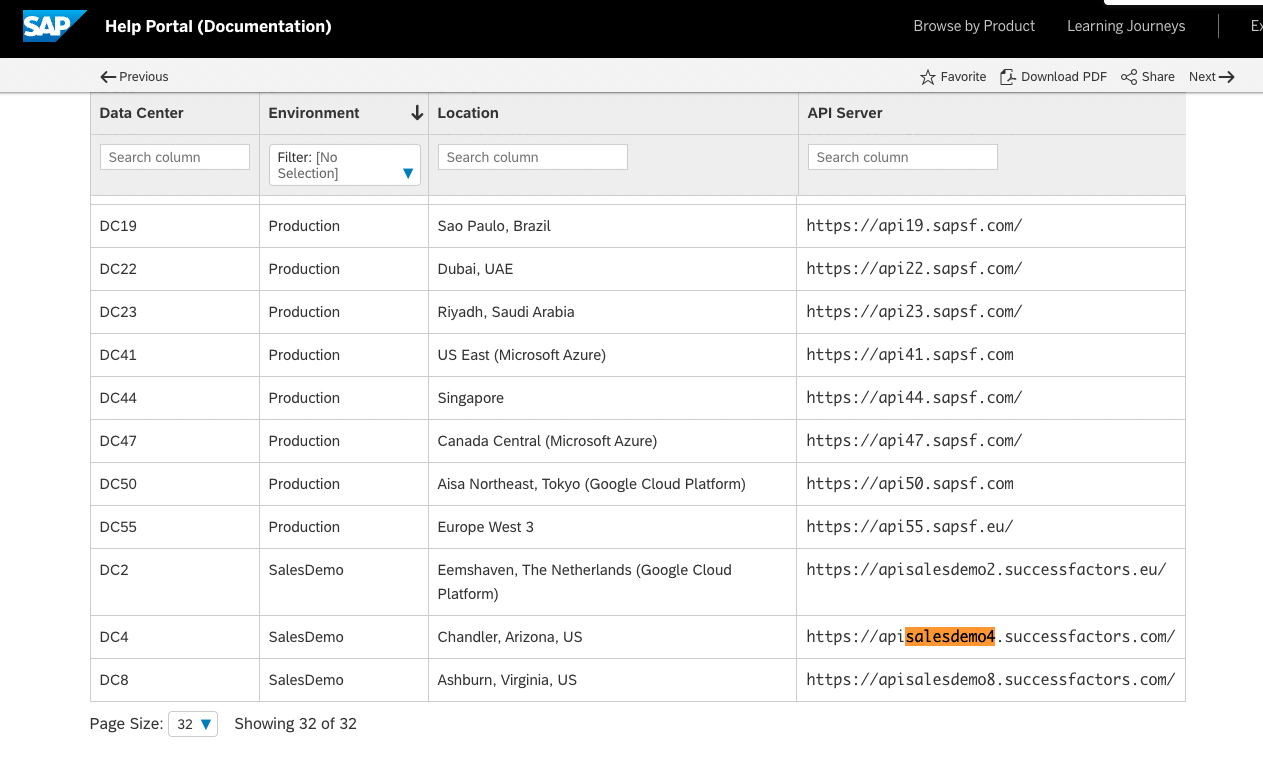
- Once you've found the URL, copy the entire URL.In this example, it would be: apisalesdemo4.successfactors.com
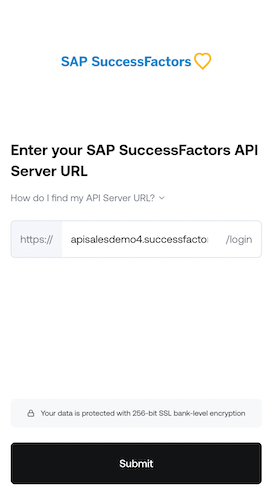
- Enter your SAP SuccessFactors API Server URL into the integration authorization component as shown below:
Step 6: Input the username and company ID in the linking flow
- In the linking flow, input the username of the User you created in Step 1
If you don't know your company ID, select your profile image in the top right, then select Show version information.
- Your Company ID will appears in the pop up - sample below
- Once you obtain your company ID, enter it in the linking flow as shown, then select Next
Step 7: Generate your SAP SuccessFactors Client ID and Secret
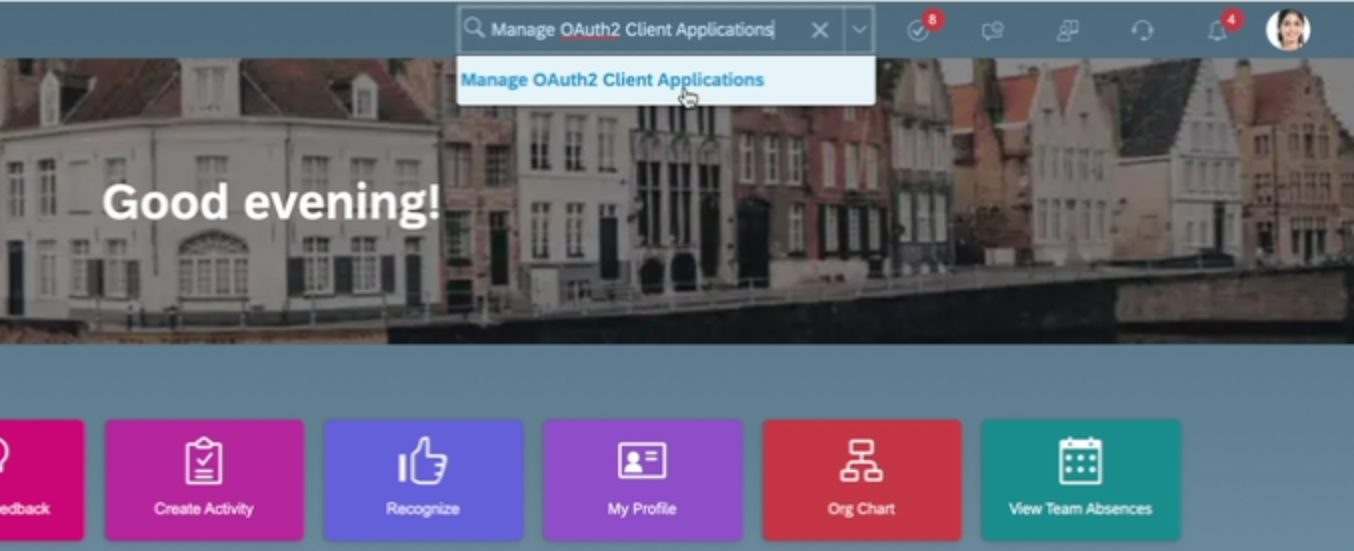
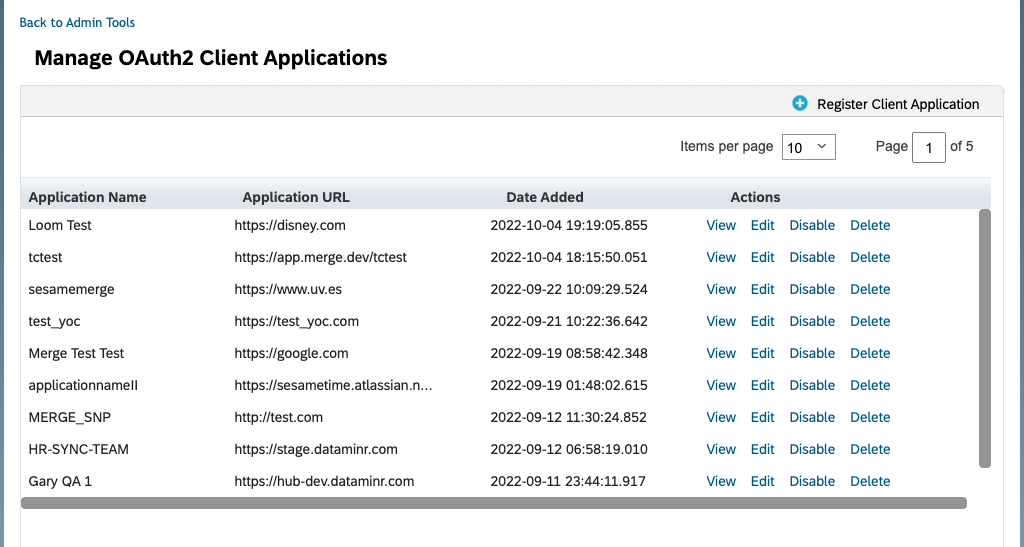
- In your Admin Center, go to Tools, and search Manage OAuth2 Client Applications (If your page looks different, search for Manage OAuth2Client Applications in the search tool on your homepage).
- Click Register Client Application.
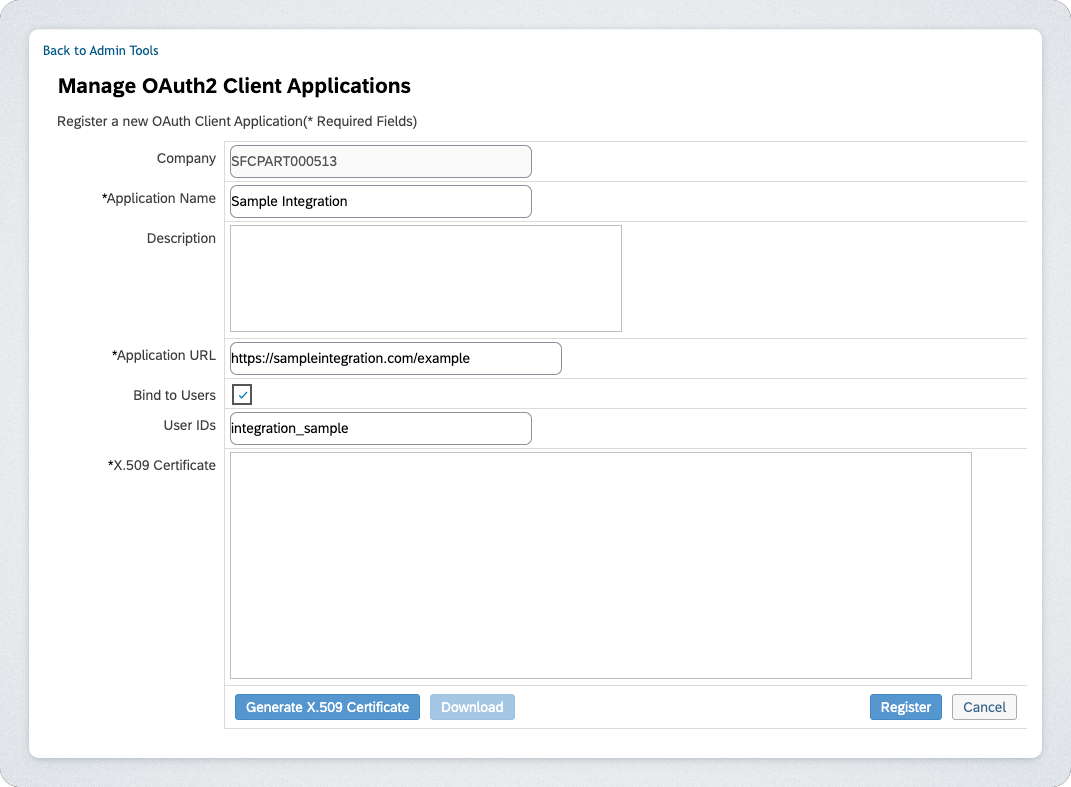
- Fill out your application details:
- Application Name & Application URL (what actually goes in these fields is not important, except that the URL has to begin with https://).
- Check Bind to Users
- Input the username of the user you created in step 1 in the User IDs field
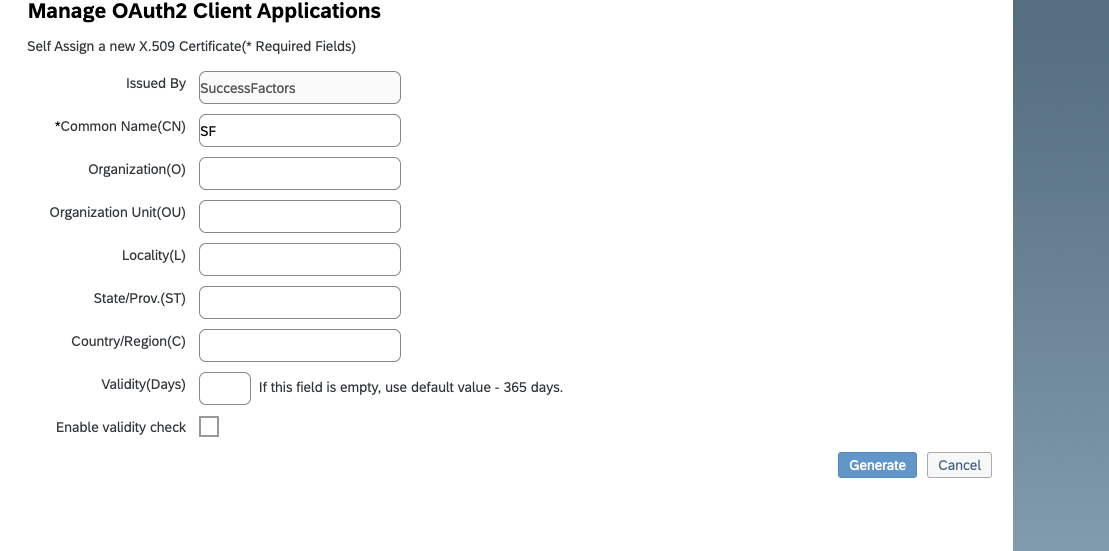
- Click Generate X.509 Certificate. Fill out Common Name (name doesn't matter) and hit Generate.
- Once the certificate populates, download and save it. You will have downloaded a file called Certificate.pem.

- Click Register (it will have replaced the Generate button).
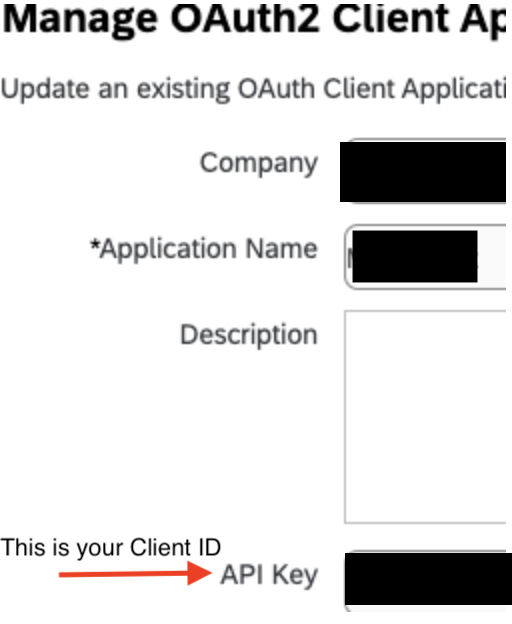
- Back on your Manage OAuth2 Client Applications, go to the application you just created and click Edit.

- You will now see an API key listed - this is your Client ID. Copy and save this Key.
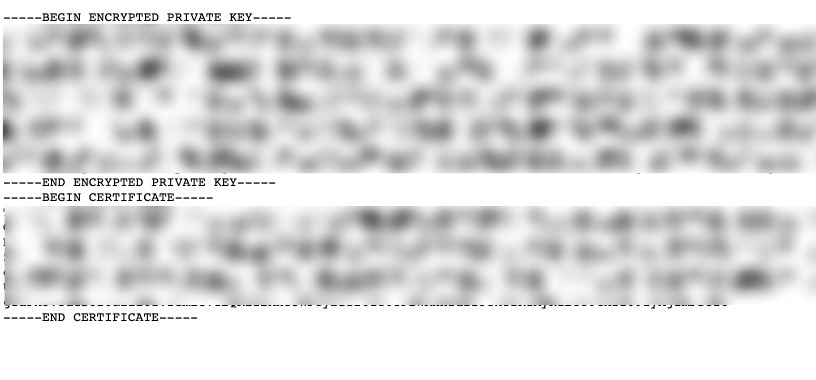
- Open up the "Certificate.pem" file that you downloaded previously in a text editor. The string between ——BEGIN ENCRYPTED PRIVATE KEY——- and —-END ENCRYPTED PRIVATE KEY——- is your Client Secret. Copy the Client Secret and save.
- Enter your Client ID and Secret into the integration authorization component as shown below:
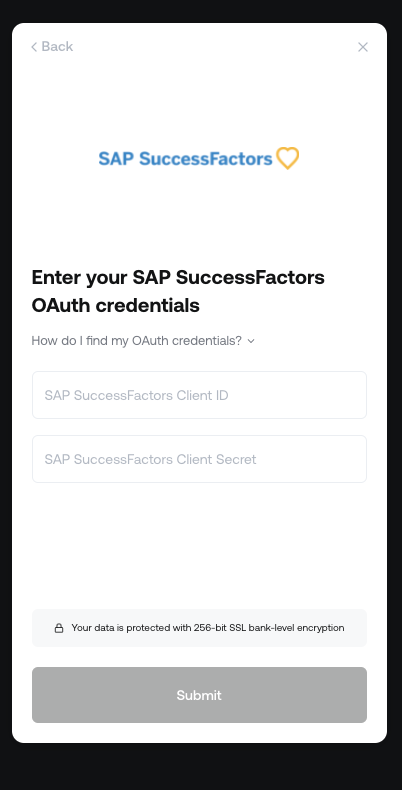
The linking flow should now attempt to validate your credentials. This can take a few seconds to about a minute. If you've done everything correctly, you should then see a success screen, then you're done!