Overview
To authenticate ADP, you will need to provide the following information:
- ADP Marketplace token.
- Consent to access your ADP data.
Prerequisites
Please ensure you fulfill all the requirements to set up the integration:
- You are an Administrator in your company's ADP instance, or someone has shared their access with you.
Instructions
Step 1: Get started
-
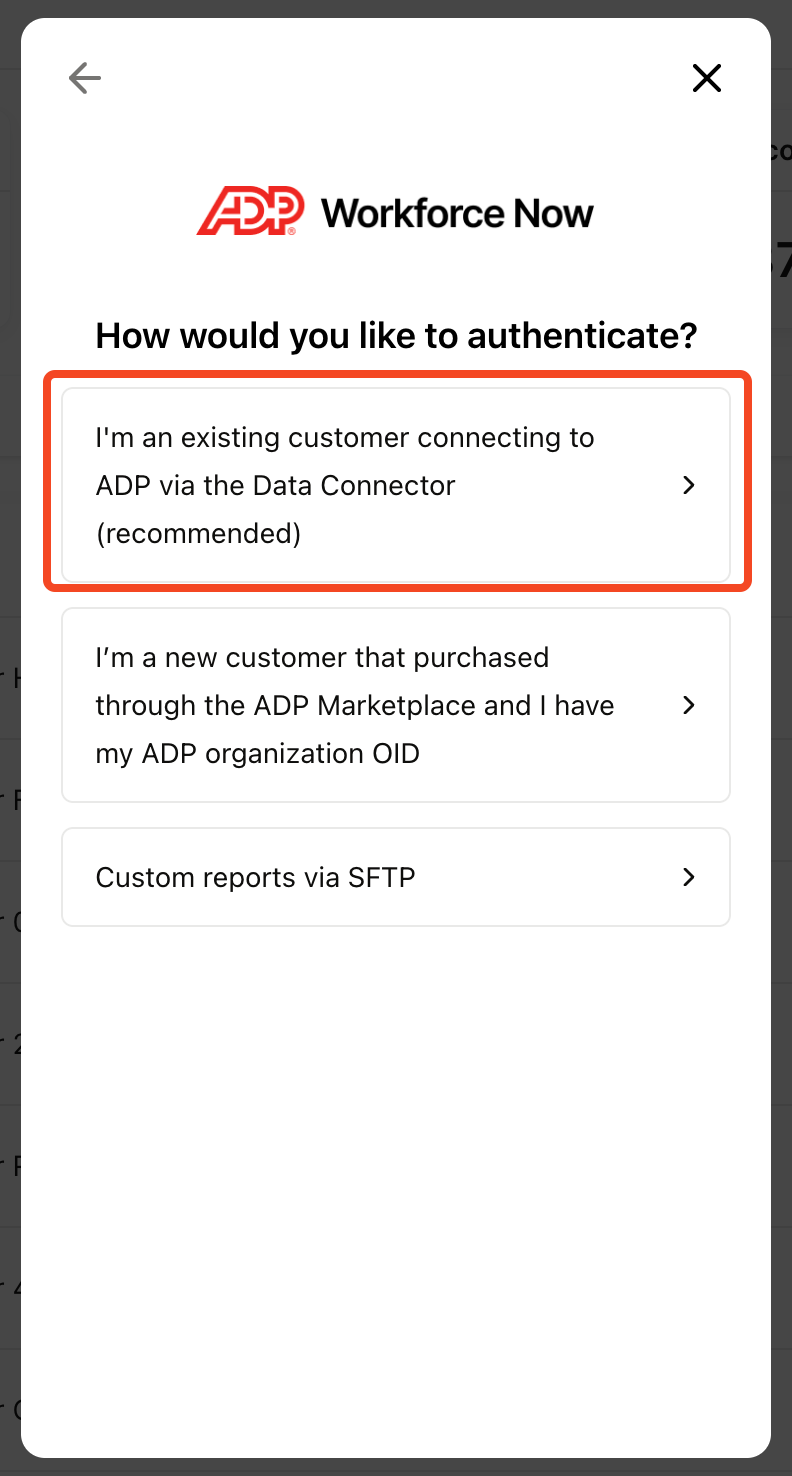
Select ADP in the Linking Flow and choose the I'm an existing customer connecting to ADP via the Data Connector option.
-
You will see a token that will be used in the next steps.
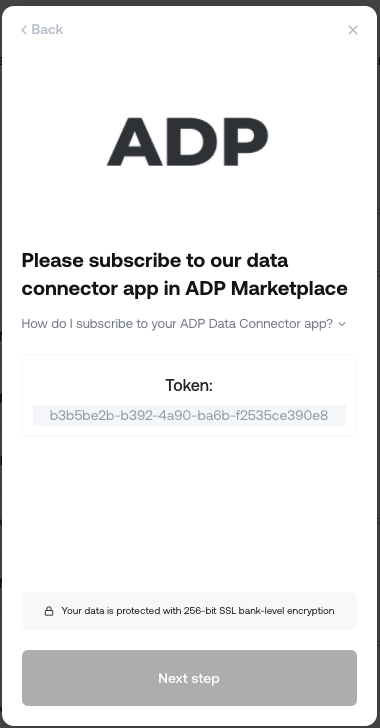
- Copy the token presented in the Linking Flow screen, but do not close this pop up window.
Step 2: Logging into ADP to add the token
- Open a new tab and log into your ADP account.
- Navigate to the ADP Marketplace.
- On the ADP Marketplace, search for the data-connector app that belongs to the business you are integrating with.
- Click Buy Now.
- When prompted for a token, enter the value from the popup shown in Step 1.
- Finalize the subscription on the ADP Marketplace Subscription flow.
- Return to your original tab from Step 1 to complete the rest of the linking process.
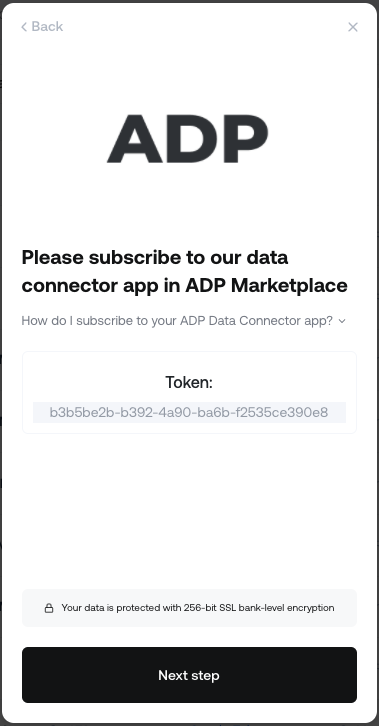
- A Next step button should will appear in the popup window.
-
Click the button to proceed:
Step 3: Providing consent in ADP
- Navigate to your ADP tab and navigate to the My Apps section of the ADP Marketplace.
- Click on the data connector app set up in Step 2.
- In the prompt asking for consent to access your data, grant access.
Step 4: Connect the integration
- Navigate back to your original tab.
-
Click I have provided consent after providing consent in Step 3.
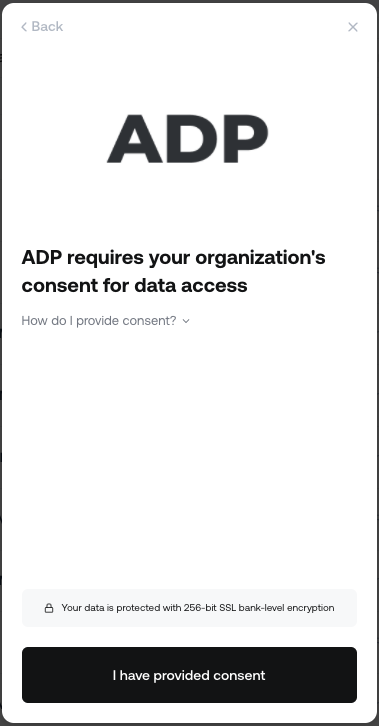
- Your account is now linked, and the initial data sync has begun.
Notes
- If you don't see the prompt in Step 3, you've likely already granted access to the company you're integrating with, and you can skip this step.