Overview
To authenticate Oracle Fusion Cloud HCM, you will need to provide the following information:
- Server URL
- User Name
- Password
Prerequisites
Please ensure you are an Administrator in your company's Oracle Cloud HCM instance.
Instructions
Step 1: Get your REST Server URL, username, and password from your Oracle welcome email.
You can find the Server URL, username, and password in your welcome email upon becoming a new customer of Oracle Cloud HCM.
If the email is not easily accessible, you will be able to resend the email to your company's service administrator via the following instructions from Oracle Support.
Step 2: Enter your Oracle Cloud HCM Server URL into the ContactMonkey linking flow
- In ContactMonkey, got to Directory > Sources, located the HRIS Sync tile.
- Click on Configure and then locate the Oracle Cloud Human Capital Management (HCM) integration and click on that.
- Enter your Oracle Cloud HCM Server URL
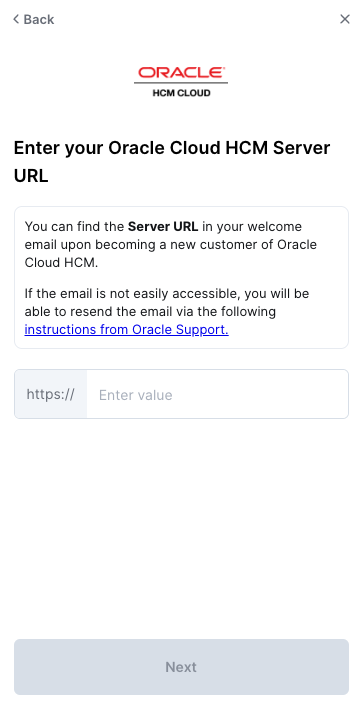
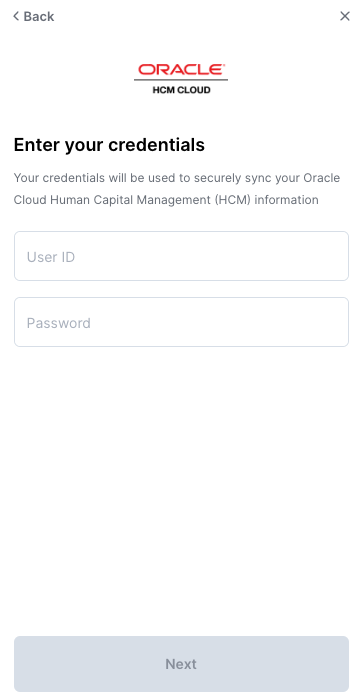
Step 3: Enter your Oracle Cloud HCM credentials into the ContactMonkey linking flow
This may be the credentials of either an Admin or a Service User
The data ContactMonkey will have viewing access to is outlined in the next page as displayed in the screenshot below.
Note: ContactMonkey asks for permission to information found in the models:
- Employment data — to view employee level information including full name, company, employment status, work email, etc.
- Location data — to view an employee's work location including city and country.